
Anúncios
Unlock the full potential of your smartphone by learning how to enable 5G connectivity and experience faster downloads, seamless streaming, and lightning-quick browsing speeds.


The arrival of 5G technology has revolutionized mobile connectivity, offering unprecedented speeds and reliability. However, many smartphone users find themselves unable to access these blazing-fast networks simply because they haven’t properly configured their devices. Whether you’ve just upgraded to a 5G-compatible phone or recently switched carriers, understanding how to activate and optimize your 5G connection is essential.
This comprehensive guide walks you through everything you need to know about enabling 5G on your cellphone, troubleshooting common issues, and maximizing your mobile internet experience. From checking device compatibility to adjusting network settings across different operating systems, we’ll cover all the essential steps to get you connected. 📱
Understanding 5G Technology and Its Benefits
Fifth-generation wireless technology represents a massive leap forward from 4G LTE networks. With theoretical download speeds reaching up to 10 Gbps and significantly reduced latency, 5G transforms how we use our smartphones for work, entertainment, and communication.
The practical benefits extend beyond just speed. 5G networks handle more connected devices simultaneously, making them ideal for crowded urban areas, stadiums, and concerts where previous generations struggled. This enhanced capacity means fewer dropped connections and more consistent performance during peak usage times.
Many users report dramatic improvements in video calling quality, cloud gaming responsiveness, and the ability to download large files within seconds. Streaming 4K content becomes effortless, and augmented reality applications run smoother than ever before. These advantages make enabling 5G on your device well worth the effort.
Checking If Your Phone Supports 5G Connectivity
Before attempting to enable 5G, you need to verify that your smartphone actually supports this technology. Not all devices include 5G-capable hardware, even among relatively recent models.
The easiest method involves checking your phone’s specifications on the manufacturer’s website or in the original documentation. Look for phrases like “5G compatible,” “5G NR,” or specific band support information. Major flagship phones released after 2020 typically include 5G capabilities, though mid-range and budget models may vary.
You can also check within your device settings. On most smartphones, navigate to the network or mobile data section and look for 5G options. If these settings aren’t present, your device likely doesn’t support 5G connectivity. Contact your carrier or manufacturer’s customer support if you’re uncertain about your specific model’s capabilities.
5G Band Compatibility Matters
Understanding that different 5G bands exist is crucial. Low-band 5G offers widespread coverage but speeds only marginally better than 4G. Mid-band provides a balance between speed and coverage, while high-band (mmWave) delivers extraordinary speeds but limited range.
Your phone must support the specific 5G bands your carrier uses in your region. A device purchased internationally might not support all local 5G frequencies, resulting in limited or no 5G access despite being technically 5G-capable.
Verifying Your Carrier Plan Includes 5G Access
Even with a 5G-compatible device, you won’t access these networks without an appropriate carrier plan. Many mobile providers require specific subscriptions or plan upgrades to enable 5G connectivity.
Contact your carrier directly or check your account through their app or website. Some providers automatically include 5G access with existing unlimited plans, while others charge additional fees. Budget carriers using major network infrastructure may offer 5G at no extra cost, making them attractive options for cost-conscious users.
If your current plan doesn’t include 5G, ask about upgrade options. Prices vary significantly between carriers, and promotional offers frequently reduce or eliminate upgrade costs. Some providers even offer free 5G trials, allowing you to test the service before committing to a new plan.
How to Enable 5G on iPhone Devices
Apple’s iPhone 12 and newer models support 5G connectivity, with straightforward activation procedures. The process takes just a few moments and requires no technical expertise.
Start by opening the Settings app on your iPhone. Scroll down and tap “Cellular” or “Mobile Data,” depending on your region. Select “Cellular Data Options” and then tap “Voice & Data.” Here you’ll find several network mode options.
You’ll typically see three choices: 5G Auto, 5G On, and LTE. The “5G Auto” option balances speed and battery life by switching to 5G only when it won’t significantly impact battery performance. “5G On” keeps your phone connected to 5G networks whenever available, prioritizing speed over battery conservation. Choose the option that best matches your priorities. ⚡
Understanding iPhone’s Smart Data Mode
iPhones include an intelligent feature called Smart Data Mode that automatically manages your connection type. When 5G speeds aren’t necessary for your current activity, your phone switches to LTE to preserve battery life.
This feature works seamlessly in the background, ensuring you get 5G speeds for activities like streaming video or downloading apps while conserving energy during basic tasks like messaging or browsing text-heavy websites. Most users find the 5G Auto setting provides the best overall experience.

Activating 5G on Android Smartphones
Android devices vary significantly in their settings layouts depending on manufacturer and operating system version. However, the general process remains similar across most brands including Samsung, Google Pixel, OnePlus, and Xiaomi devices.
Open your Settings app and locate the “Connections,” “Network & Internet,” or “SIM cards & mobile networks” section. The exact naming depends on your device manufacturer and Android version. Tap on “Mobile Networks” or “Cellular Networks.”
Look for an option labeled “Preferred network type,” “Network mode,” or similar. Tap this option to reveal available connection types. Select “5G/4G/3G/2G (auto connect)” or “5G preferred” from the list. Some devices offer options like “5G/4G” or simply “5G.” Choose the setting that includes 5G in the description.
Samsung Galaxy 5G Settings
Samsung devices follow a slightly different path. Open Settings, tap “Connections,” then select “Mobile networks.” Look for “Network mode” and choose either “5G/LTE/3G/2G (auto connect)” or “5G only” depending on your preference and coverage area.
Samsung’s One UI also includes a convenient quick toggle in the notification shade. Swipe down from the top of your screen and look for the mobile data icon. Long-press it to quickly access network mode settings without diving through multiple menus.
Google Pixel 5G Configuration
Pixel phones running stock Android offer a clean, straightforward approach. Navigate to Settings > Network & internet > SIMs. Select your active SIM card, then tap “Preferred network type.” Choose “5G (recommended)” from the available options.
Google’s implementation typically provides excellent 5G connectivity with intelligent switching between network types to optimize battery life and performance without requiring manual intervention.
Troubleshooting Common 5G Activation Issues
Sometimes enabling 5G in your settings doesn’t immediately result in a 5G connection. Several factors might prevent your device from accessing these networks even after proper configuration.
Location plays a critical role in 5G availability. Even major cities have incomplete 5G coverage, with signal strength varying dramatically between neighborhoods. Check your carrier’s coverage map to verify 5G availability in your specific area. Moving just a few blocks can sometimes make the difference between strong 5G signal and none at all.
Software updates frequently include important modem firmware improvements that enhance 5G connectivity. Check for pending system updates in your device settings and install them. Both iOS and Android regularly release updates that improve network performance and fix connectivity bugs.
Resetting Network Settings
If you’ve verified coverage and updated your software but still can’t connect to 5G, resetting your network settings often resolves persistent issues. This process erases saved Wi-Fi passwords, Bluetooth pairings, and cellular settings, returning everything to factory defaults.
On iPhone, go to Settings > General > Transfer or Reset iPhone > Reset > Reset Network Settings. On Android devices, the path varies but typically involves Settings > System > Reset options > Reset Wi-Fi, mobile & Bluetooth. After resetting, reconfigure your 5G preferences as described earlier.
Optimizing 5G Performance and Battery Life
While 5G offers incredible speeds, it can also drain your battery faster than previous network generations. Balancing performance and battery life requires understanding how different settings impact power consumption.
Using “5G Auto” or adaptive network modes allows your phone to intelligently switch between network types based on your current activity and signal strength. This approach provides 5G speeds when beneficial while falling back to more battery-efficient 4G when the speed difference won’t impact your experience.
Consider manually switching to 4G when you know you’ll be away from chargers for extended periods and don’t require maximum speeds. Most phones allow quick toggling through quick settings panels, making it convenient to adjust based on your immediate needs.
Apps That Benefit Most from 5G
Certain activities see dramatic improvements on 5G networks. Video conferencing apps like Zoom, Microsoft Teams, and Google Meet provide noticeably better quality with fewer freezes and drops. Cloud gaming services such as Xbox Cloud Gaming and GeForce Now become genuinely playable with 5G’s reduced latency.
Streaming platforms including Netflix, YouTube, and Disney+ buffer almost instantly and support higher quality streams without interruption. Large file downloads, cloud photo backups, and app updates that once required Wi-Fi connections now complete quickly over cellular data.
Understanding 5G Indicators on Your Device
Different carriers use various icons to indicate 5G connectivity, which can create confusion about the actual network type you’re using. Learning to interpret these symbols helps you understand your connection quality.
A simple “5G” icon typically indicates connection to nationwide low-band or mid-band 5G networks. These provide good coverage and moderate speed improvements over 4G. “5G+” or “5G UW” (ultra-wideband) symbols indicate connection to high-band mmWave networks offering truly exceptional speeds but limited range.
Some carriers display “5G E” or “5G Evolution,” which is misleading marketing terminology for enhanced 4G LTE rather than true 5G. If you see this indicator, you’re not actually connected to a 5G network despite what the icon suggests.
Regional Considerations for 5G Availability
5G deployment varies dramatically by country and region. While major metropolitan areas in developed nations enjoy extensive coverage, rural areas and developing countries face slower rollouts due to infrastructure costs and regulatory challenges.
Urban centers typically offer the best 5G experience, with carriers prioritizing high-traffic areas. Suburbs receive mid-band 5G coverage that balances speed and coverage area. Rural locations might only have access to low-band 5G or remain on 4G networks for the foreseeable future.
International travelers should note that 5G bands differ between countries. A phone configured for 5G in the United States might not support the frequencies used in European or Asian networks, limiting connectivity when abroad. Research your destination’s 5G implementation before traveling if maintaining high-speed connectivity is important.
Security Considerations When Using 5G Networks
5G networks incorporate improved security protocols compared to previous generations, but users should still follow best practices to protect their data. The same precautions necessary for 4G remain relevant on 5G connections.
Always use VPN services when accessing sensitive information over cellular networks, regardless of generation. Enable two-factor authentication on important accounts to add an extra security layer. Keep your device’s operating system and apps updated to patch security vulnerabilities that could be exploited over any network connection. 🔒
Be cautious about connecting to unknown networks, though this primarily applies to Wi-Fi rather than carrier 5G. Legitimate carrier 5G networks authenticate properly with your SIM card, making man-in-the-middle attacks significantly more difficult than on public Wi-Fi hotspots.
Future-Proofing Your Mobile Experience
As 5G networks continue expanding and evolving, ensuring your device can take full advantage of improvements becomes increasingly valuable. When purchasing a new smartphone, prioritize models with comprehensive 5G band support rather than basic implementations.
Look for devices supporting both sub-6GHz and mmWave 5G frequencies to maximize compatibility across different carrier deployments and geographic locations. This flexibility ensures you’ll access the fastest available networks regardless of where you travel or if you switch carriers.
Monitor carrier announcements about network upgrades in your area. Many providers continually expand coverage and upgrade existing infrastructure to faster 5G variants. What starts as basic low-band 5G might evolve into significantly faster mid-band service as carriers invest in their networks.
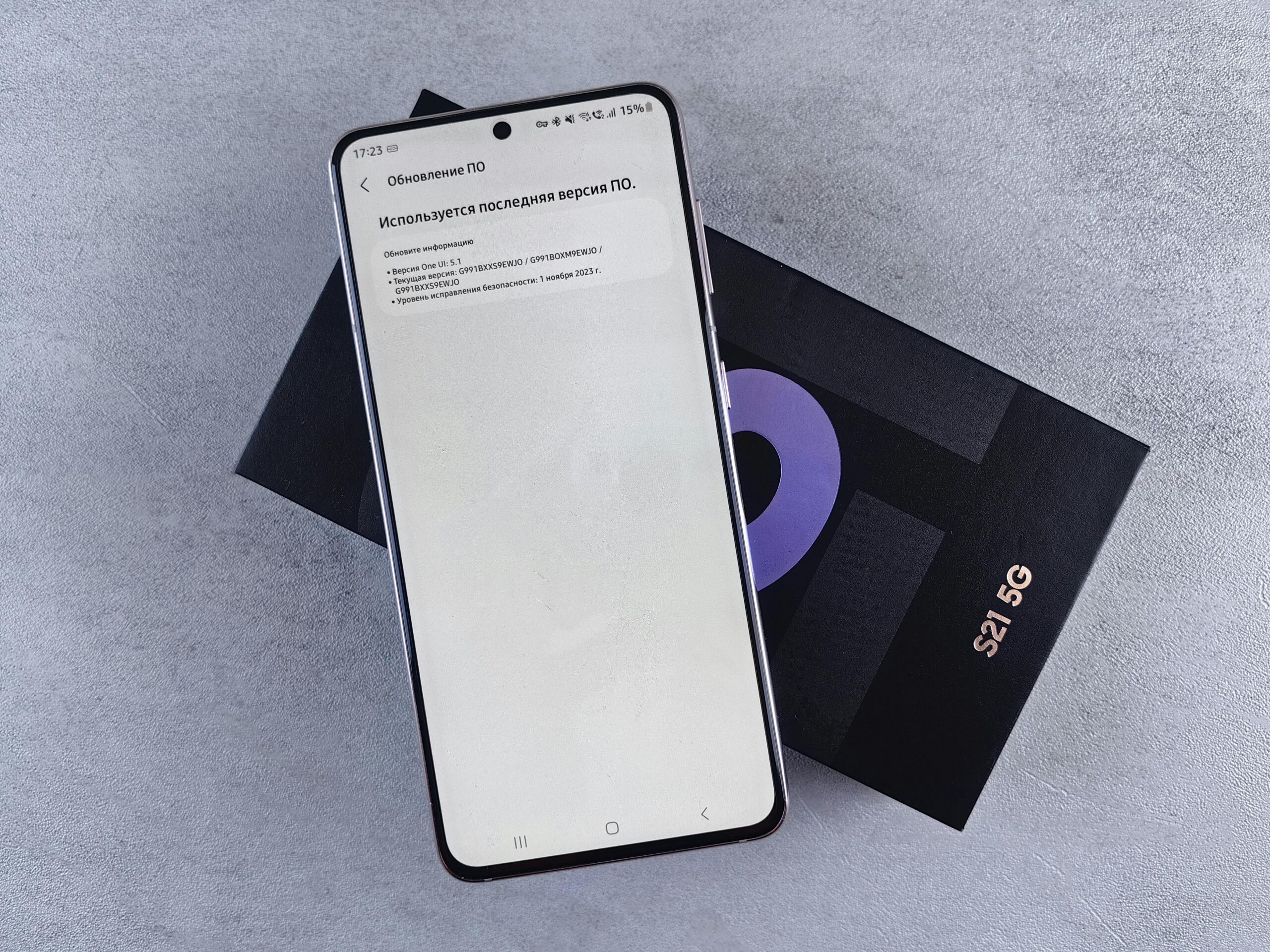
Making the Most of Your 5G Connection
Now that you’ve successfully enabled 5G on your device, take advantage of the enhanced capabilities it provides. Explore activities that were previously impractical over cellular networks, such as downloading entire movie libraries for offline viewing, participating in high-quality video calls without Wi-Fi, or enjoying cloud gaming during commutes.
Consider adjusting your data plan if you find yourself using significantly more cellular data thanks to 5G’s convenience. Many users discover they rely less on Wi-Fi connections when 5G provides comparable or superior speeds without the hassle of connecting to different networks.
Test your connection speeds using reliable speed test apps to verify you’re actually receiving 5G performance. Real-world speeds vary based on network congestion, distance from towers, and environmental factors, but you should notice clear improvements over 4G in most situations.
Remember that 5G technology continues evolving rapidly. Stay informed about updates from your carrier and device manufacturer that might enhance your experience or expand coverage in your area. The effort you’ve invested in enabling and optimizing 5G will pay dividends as networks mature and new applications take advantage of these revolutionary speeds. 🚀
