
Anúncios
Unlocking the full potential of 5G on your smartphone can dramatically transform your mobile experience, offering lightning-fast speeds and enhanced connectivity.


The arrival of 5G technology has revolutionized how we interact with our mobile devices, promising speeds up to 100 times faster than 4G networks. However, many users find themselves struggling to activate or properly configure 5G on their smartphones, missing out on this technological leap forward.
Whether you’re experiencing slower-than-expected data speeds or simply can’t find the 5G option in your settings, understanding how to unlock and optimize this feature is essential. This comprehensive guide will walk you through everything you need to know about enabling 5G on your device, troubleshooting common issues, and maximizing your 5G experience. 📱
Understanding What 5G Really Means for Your Device
Before diving into activation steps, it’s crucial to understand what 5G technology actually brings to your smartphone. The fifth generation of wireless technology operates on different frequency bands, offering unprecedented download and upload speeds, reduced latency, and improved network capacity.
5G networks typically utilize three spectrum bands: low-band (providing wide coverage), mid-band (balancing speed and coverage), and high-band or mmWave (delivering the fastest speeds but with limited range). Your experience will vary depending on which bands your carrier supports and your device’s capabilities.
Not all smartphones are created equal when it comes to 5G support. Some devices only support certain 5G bands, while flagship models offer comprehensive compatibility. This distinction directly impacts your ability to access 5G networks and the speeds you’ll experience in different locations.
Checking If Your Smartphone Supports 5G Technology ✅
The first step in unlocking 5G on your device is confirming whether your smartphone actually has 5G hardware capabilities. Many users assume their relatively new phones support 5G, but not all models released in recent years include this technology.
To verify 5G compatibility on your device, check your phone’s specifications in the settings menu. On most Android devices, navigate to Settings > About Phone > Status or Network to see available network types. iPhone users can check Settings > General > About and look for network capabilities.
Additionally, you can visit your manufacturer’s official website and search for your specific model number to confirm 5G support. Keep in mind that some budget and mid-range smartphones still only offer 4G LTE connectivity, even if they were released recently.
Regional Variations and Model Numbers
An important consideration often overlooked is that smartphone models sold in different regions may have varying 5G capabilities. A device sold in North America might support different 5G bands than the same model sold in Europe or Asia.
This discrepancy occurs because manufacturers optimize phones for the specific frequency bands used by carriers in each region. Always verify that your device model specifically supports the 5G bands deployed by carriers in your country.
Verifying Your Carrier’s 5G Network Coverage 🌐
Having a 5G-capable device means nothing if your mobile carrier doesn’t offer 5G service in your area. Network rollout varies significantly between providers and geographic locations, with urban centers typically receiving coverage before rural areas.
Visit your carrier’s official website or use their mobile app to check the 5G coverage map for your location. These maps typically distinguish between different types of 5G service, such as 5G nationwide (low-band) and 5G Ultra Wideband or 5G+ (mid-band and mmWave).
Remember that indoor coverage may differ from outdoor availability, especially for high-frequency 5G signals that struggle to penetrate buildings. If you’re located on the edge of a coverage area, you might experience intermittent 5G connectivity.
Understanding Your Data Plan Requirements
Not all mobile plans automatically include 5G access, even if you have a compatible device in a covered area. Some carriers require specific plan tiers or add-ons to enable 5G connectivity, so reviewing your subscription details is essential.
Contact your carrier’s customer service or check your account dashboard to confirm whether your current plan includes 5G access. In some cases, upgrading to a 5G-enabled plan involves no additional cost, while other carriers charge premium rates for 5G service.

Step-by-Step Guide: Activating 5G on Android Devices 🤖
Android smartphones offer various paths to enabling 5G depending on the manufacturer and operating system version. The process is generally straightforward, though menu locations may differ between Samsung, Google Pixel, OnePlus, and other brands.
Start by opening your Settings app and navigating to the network or connections section. Look for options labeled “Mobile Networks,” “Cellular Networks,” or similar terminology. Within this menu, you should find a “Network Mode” or “Preferred Network Type” option.
Tap on the network mode setting and select the option that includes 5G. Common labels include “5G/4G/3G/2G (auto connect),” “5G On,” or “5G/LTE/3G/2G.” After selecting this option, your device will automatically connect to 5G networks when available.
Samsung Galaxy Devices
Samsung users should follow this specific path: Settings > Connections > Mobile Networks > Network Mode. Here you’ll find options like “5G/LTE/3G/2G (auto connect)” or simply “5G.” Some Samsung models also offer a “5G/LTE/3G” option that excludes slower 2G networks.
Samsung’s One UI interface may also include a quick toggle in the notification panel or a dedicated 5G icon in the status bar once enabled. Certain Galaxy models feature intelligent network switching that balances speed and battery life automatically.
Google Pixel and Stock Android
Pixel phones running stock Android use this pathway: Settings > Network & Internet > SIMs > Preferred Network Type. Select the option that includes 5G, such as “5G (recommended)” or “5G/LTE.” Google’s implementation typically prioritizes smart network switching to optimize battery performance.
Step-by-Step Guide: Activating 5G on iPhone Devices 📱
Apple introduced 5G support starting with the iPhone 12 series and has continued including it in subsequent models. The iOS interface provides a streamlined approach to enabling 5G with additional customization options for managing data usage.
Open the Settings app and tap on “Cellular” or “Mobile Data” (depending on your region). Select “Cellular Data Options” or “Mobile Data Options,” then tap on “Voice & Data.” You’ll see several network options including 5G Auto, 5G On, and LTE.
Choosing “5G Auto” allows your iPhone to intelligently switch between 5G and LTE based on battery life and network conditions. This option balances performance with energy efficiency, extending your device’s battery life when high-speed connectivity isn’t necessary.
Understanding iPhone’s 5G Settings
The “5G On” option forces your iPhone to use 5G whenever available, potentially consuming more battery but ensuring maximum speeds. “LTE” disables 5G entirely, which may be preferable if you’re experiencing connectivity issues or want to maximize battery longevity.
iPhone users also have access to a “Data Mode” setting within the cellular options. This feature includes “Allow More Data on 5G,” which enables higher-quality video streaming and FaceTime calls when connected to 5G networks. Consider enabling this if you frequently consume media on your device.
Troubleshooting Common 5G Activation Issues 🔧
Even after following proper activation steps, you might encounter situations where 5G doesn’t appear or function as expected. These issues can stem from various sources, including carrier restrictions, software bugs, or hardware limitations.
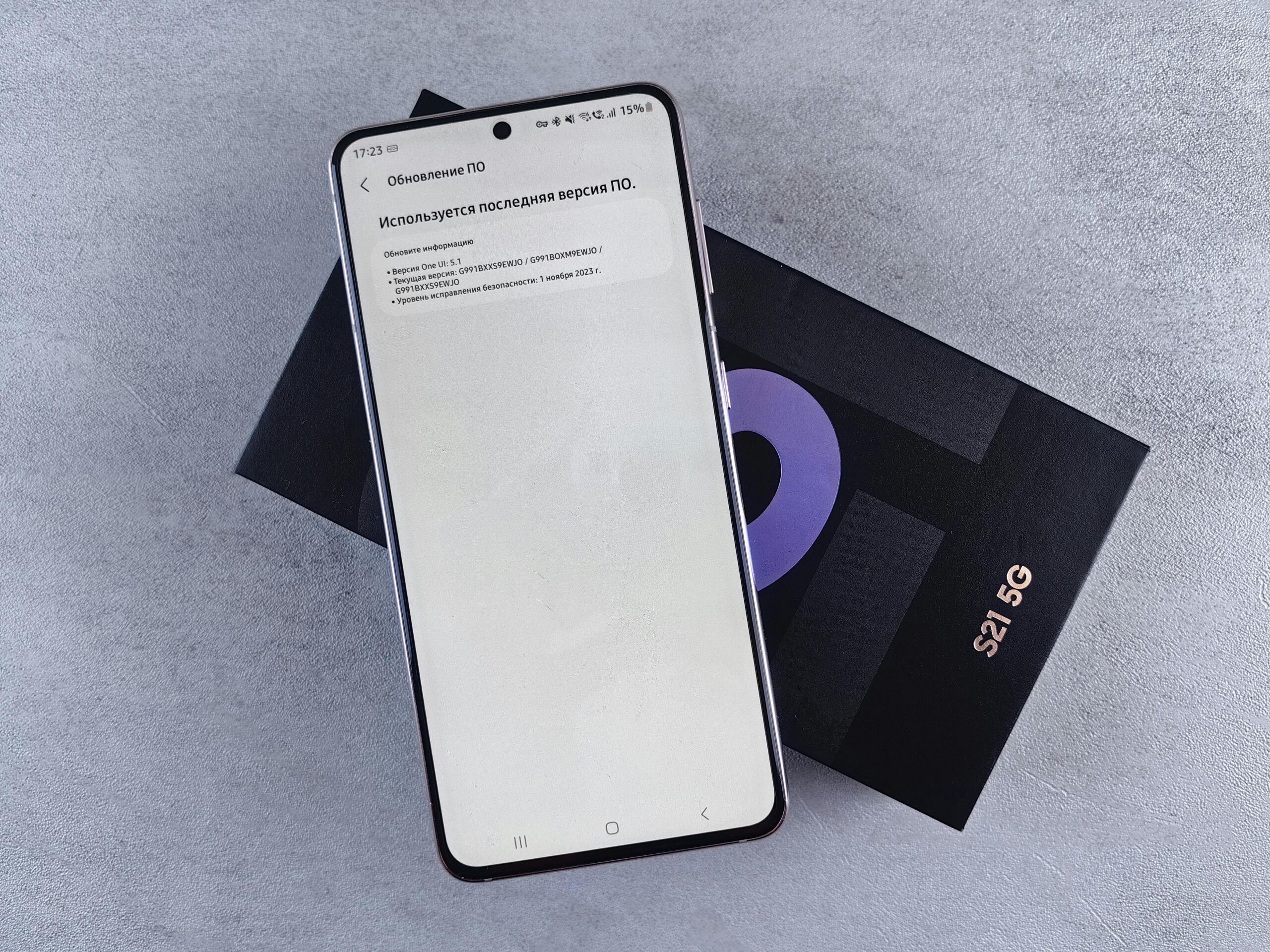
If you don’t see 5G options in your settings despite having a compatible device, ensure your operating system is updated to the latest version. Manufacturers often release software updates that enable or improve 5G functionality, so checking for system updates should be your first troubleshooting step.
Another common issue involves SIM card compatibility. Older SIM cards may not support 5G networks, requiring a replacement from your carrier. Contact your provider to request a 5G-compatible SIM card if you suspect this might be the issue.
Network Selection and Carrier Settings
Sometimes manually selecting your network provider can resolve 5G connectivity problems. Navigate to your network settings and disable automatic network selection. Your device will scan for available networks, allowing you to manually choose your carrier’s 5G network.
For iPhone users, updating carrier settings can resolve many 5G issues. These updates differ from iOS updates and contain configuration files specific to your mobile provider. Check for carrier updates by going to Settings > General > About. If an update is available, you’ll receive a prompt to install it.
Optimizing Your Device for Maximum 5G Performance ⚡
Successfully activating 5G is just the beginning—optimizing your device ensures you’re truly benefiting from the enhanced speeds and reduced latency this technology offers. Several settings and habits can significantly impact your 5G experience.
Battery management plays a crucial role in 5G performance. The technology’s higher speeds come with increased power consumption, especially when using mmWave 5G. Consider adjusting your settings to balance performance with battery life based on your daily needs.
Enabling adaptive connectivity features, available on many modern smartphones, allows your device to intelligently switch between 5G and 4G based on usage patterns. This optimization extends battery life during low-demand activities while maintaining high speeds when needed for streaming or downloads.
App and System Updates
Keeping your apps and system software updated ensures compatibility with 5G networks and access to optimizations developed by manufacturers. Many streaming services, social media platforms, and communication apps have implemented specific enhancements for 5G connectivity.
Background app refresh and automatic downloads can consume significant data on 5G networks due to increased speeds. Review these settings in your device’s configuration menu to prevent unexpected data usage, especially if your plan has data caps or throttling policies.
Measuring Your 5G Speed and Connection Quality 📊
After enabling 5G, testing your actual connection speeds helps verify that everything is working correctly and allows you to understand the real-world performance you can expect from your network.
Numerous speed test applications are available for both Android and iOS platforms, with options specifically designed to measure 5G performance. These apps typically measure download speed, upload speed, latency (ping), and jitter, providing comprehensive insights into your connection quality.
When conducting speed tests, perform multiple measurements at different times of day and in various locations. Network performance can vary significantly based on congestion, distance from cell towers, and physical obstacles. Morning tests might yield different results than evening measurements when more users are active on the network.
Interpreting Your Speed Test Results
Understanding what your speed test numbers actually mean helps set realistic expectations. Low-band 5G typically delivers speeds between 50-250 Mbps, mid-band 5G ranges from 100-900 Mbps, and mmWave 5G can exceed 1-3 Gbps under ideal conditions.
Latency measurements are equally important, especially for gaming and video conferencing. 5G networks should typically show latency between 10-50 milliseconds, significantly lower than 4G LTE’s typical range of 30-100 milliseconds. Lower latency translates to more responsive connections and better real-time performance.
Managing Data Consumption on 5G Networks 💾
The dramatically faster speeds offered by 5G networks make it incredibly easy to consume large amounts of data without realizing it. A movie that previously took minutes to download on 4G can now complete in seconds, potentially leading to unexpected data overages.
Most smartphones include built-in data monitoring tools that track your usage over time. Access these features in your settings menu to set warnings or limits that alert you when approaching your plan’s data cap. Some devices also allow you to restrict specific apps from using mobile data entirely.
Consider adjusting streaming quality settings in video and music applications when using mobile data. Many services default to maximum quality on 5G connections, which can quickly deplete your data allowance. Setting a reasonable quality limit helps balance experience with data conservation.
Future-Proofing Your 5G Experience 🚀
As 5G networks continue to expand and evolve, staying informed about infrastructure improvements and device capabilities ensures you’re positioned to benefit from ongoing enhancements. Carriers regularly upgrade their networks, adding new coverage areas and increasing capacity.
The transition from non-standalone (NSA) 5G to standalone (SA) 5G networks represents a significant evolution in how the technology operates. SA 5G offers improved performance, lower latency, and access to advanced features like network slicing, though availability varies by region and carrier.
When considering future smartphone purchases, evaluate 5G specifications carefully. Devices supporting more frequency bands provide greater flexibility and better performance across different carriers and regions. Investing in comprehensive 5G support now ensures longer device relevance as networks expand.
Security Considerations When Using 5G Networks 🔒
While 5G technology includes enhanced security features compared to previous generations, users should still practice good security hygiene when connected to any mobile network. Understanding potential vulnerabilities helps protect your personal information and device.
Always use VPN services when transmitting sensitive information over mobile networks, regardless of whether you’re connected to 5G, 4G, or WiFi. The increased speeds of 5G networks make VPN usage more practical, as the encryption overhead has minimal impact on performance.
Be cautious of unfamiliar network connections and ensure your device’s automatic WiFi connection features are properly configured. Some threats exploit the way devices switch between different network types, potentially intercepting data during transition periods.
Exploring 5G’s Impact on Different Use Cases 🎯
The benefits of 5G extend far beyond simply faster downloads. Different activities and applications leverage specific advantages of this technology, transforming how we use our smartphones in various contexts.
For mobile gaming, 5G’s low latency creates more responsive gameplay, particularly important for competitive multiplayer games where milliseconds matter. Cloud gaming services especially benefit from 5G connectivity, enabling console-quality gaming on smartphones without requiring powerful local hardware.
Video streaming and conferencing experience dramatic improvements on 5G networks. Higher resolution streams, including 4K and eventually 8K content, become practical on mobile connections. Video calls maintain stability and quality even when moving, making mobile conferencing genuinely viable for professional use.
Augmented and Virtual Reality Applications
Emerging AR and VR applications require the combination of high speeds and low latency that 5G uniquely provides. From navigation apps with detailed real-time overlays to immersive entertainment experiences, 5G enables mobile AR and VR use cases that were previously impractical.
As these technologies mature, having 5G connectivity will become increasingly important for accessing cutting-edge applications and services. Early adoption positions you to explore these innovations as they become mainstream.
Making the Most of Your 5G Connection Today ✨
Unlocking 5G on your smartphone opens doors to enhanced mobile experiences that extend beyond simple speed improvements. The combination of faster data rates, lower latency, and increased network capacity fundamentally changes what’s possible with mobile technology.
Remember that 5G is still evolving, with carriers continuously expanding coverage and improving performance. Your experience today represents just the beginning of what this technology will eventually offer as infrastructure matures and new use cases emerge.
By following the activation steps outlined for your specific device, troubleshooting any issues that arise, and optimizing your settings for your particular usage patterns, you’ll be well-positioned to take full advantage of 5G connectivity wherever available. Stay informed about updates from both your device manufacturer and carrier to ensure you’re always benefiting from the latest improvements to this transformative technology.
